Tuesday, January 24, 2023

Module not found: Error: Can't resolve 'crypto' - React Error

 I was doing a project in ReactJS and needed to install jsonwebtoken module for the authentication part.  After installing jsonwebtoken I faced some issues regarding crypto and other library modules. 

The error was like this:-

Module not found: Error: Can't resolve 'crypto' in '<your_project_path>/client/node_modules/jwa'
BREAKING CHANGE: webpack < 5 used to include polyfills for node.js core modules by default.
This is no longer the case. Verify if you need this module and configure a polyfill for it.

If you want to include a polyfill, you need to:
        - add a fallback 'resolve.fallback: { "crypto": require.resolve("crypto-browserify") }'
        - install 'crypto-browserify'
If you don't want to include a polyfill, you can use an empty module like this:
        resolve.fallback: { "crypto": false }


The error message is indicating that the "crypto" module is not found in the "<your_path>\client\node_modules\jwa" directory. The message also suggests that this issue may be related to changes in webpack version 5, where polyfills for node.js core modules are no longer included by default. 

In earlier versions of webpack, any core Node.js modules that were imported in the code would automatically be included in the bundle, even if the code was running in the browser. These included modules such as 'crypto', 'fs', and 'path'.

But in webpack version 5, this behavior has changed, and core Node.js modules are no longer automatically included in the bundle by default. This means that if your code is importing a core Node.js module, it will not work in the browser unless you explicitly include a polyfill for that module.

A polyfill is a piece of code that provides the functionality of a certain feature on environments that do not natively support it. In this case, since crypto module is not supported in the browser, the crypto-browserify is used as a polyfill to provide the same functionality in the browser.

So, this change in webpack means that developers need to be more aware of which modules they are importing in their code and ensure that those modules are available in the browser, either by providing a polyfill or by avoiding the use of that module altogether.

As we said the crypto-browserify is used as a polyfill to provide the same functionality in the browser, we can solve the issue by installing the crypto-browserify. To do that:-

First install crypto-browserify

npm install crypto-browserify

Go to webpack.config.js file located in node_modules/react-scripts/config/webpack.config.js

On line 305:-

 resolve: { fallback: { "crypto": require.resolve("crypto-browserify") } ,


The "require.resolve" method is used to find the full file path of the specified module, so in this case it is loading the "crypto-browserify" module and finding its file path to use as polyfill.

You can also use an empty module, resolve.fallback: { "crypto": false } means that the "crypto" module will not be resolved by the webpack's resolver. This is useful if you want to prevent the crypto module from being included in your bundle and thus reducing the size of your bundle. 


Share:

Saturday, November 19, 2022

Install authy without snap

Authy is a Two-Factor-Authentication software focused on security. Unfortunately Authy is only supported as a snap package. But everybody hates snap. So there is an alternate way to install authy on debian based linux distributions.


First clone the repo

git clone 'https://mpr.makedeb.org/authy'
Go to the directory

cd authy
Install makedeb

bash -ci "$(wget -qO - 'https://shlink.makedeb.org/install')"
Make Package

makedeb -si

If the last step fails:-

sudo dpkg -i *.deb

Share:

Sunday, October 9, 2022

Running jenkins on docker

 In the previous article we saw how to install and run jenkins on your linux machine. In this one we are running jenkins on a docker container. 

First of all you need to update the source and install docker.

sudo apt-get update && sudo apt-get install docker.io

Run the container

sudo docker run -it -d -p 8080:8080 -p 50000:50000 --name=jenkins -v jenkins_home:/var/jenkins_home jenkins/jenkins:lts-jdk11

That's all. Now you have jenkins running on your docker container. 

Your jenkins should be running on port number 8080 and you can access it by open a browser an enter localhost:8080 or click here


For password you can run:-

sudo docker exec -it jenkins cat /var/jenkins_home/secrets/initialAdminPassword


Share:

Installing Jenkins on Linux


As a Continuous Integration tool, Jenkins allows seamless, ongoing development, testing, and deployment of newly created code. Continuous Integration is a process wherein developers commit changes to source code from a shared repository, and all the changes to the source code are built continuously. In this tutorial we are going to see how to install Jenkins on a linux machine. 


First check you have installed any version of openjdk


apt list --installed | grep openjdk

If there is any version later than openjdk 11, you need to remove it. 

In my case openjdk-18 was installed i removed it.


sudo apt-get autoremove openjdk-18-jre-headless
sudo apt-get autoremove openjdk-18-jdk-headless

Install openjdk-11

sudo apt install openjdk-11-jre

Verify your installation:-

java --version

Confirm the output shows openjdk-11

Add the keyring

curl -fsSL https://pkg.jenkins.io/debian-stable/jenkins.io.key | sudo tee /usr/share/keyrings/jenkins-keyring.asc > /dev/null

Add the repository to the source list.

echo deb [signed-by=/usr/share/keyrings/jenkins-keyring.asc] https://pkg.jenkins.io/debian-stable binary/ | sudo tee /etc/apt/sources.list.d/jenkins.list > /dev/null

Install ca-certificates if it is not installed.

sudo apt install ca-certificates

Update the source

sudo apt-get update

Install jenkins

sudo apt-get install jenkins

After installing jenkins you can check the status of jenkins daemon 


sudo systemctl status jenkins

If it is running you are ready to go or you can start the service by sudo systemctl start jenkins 


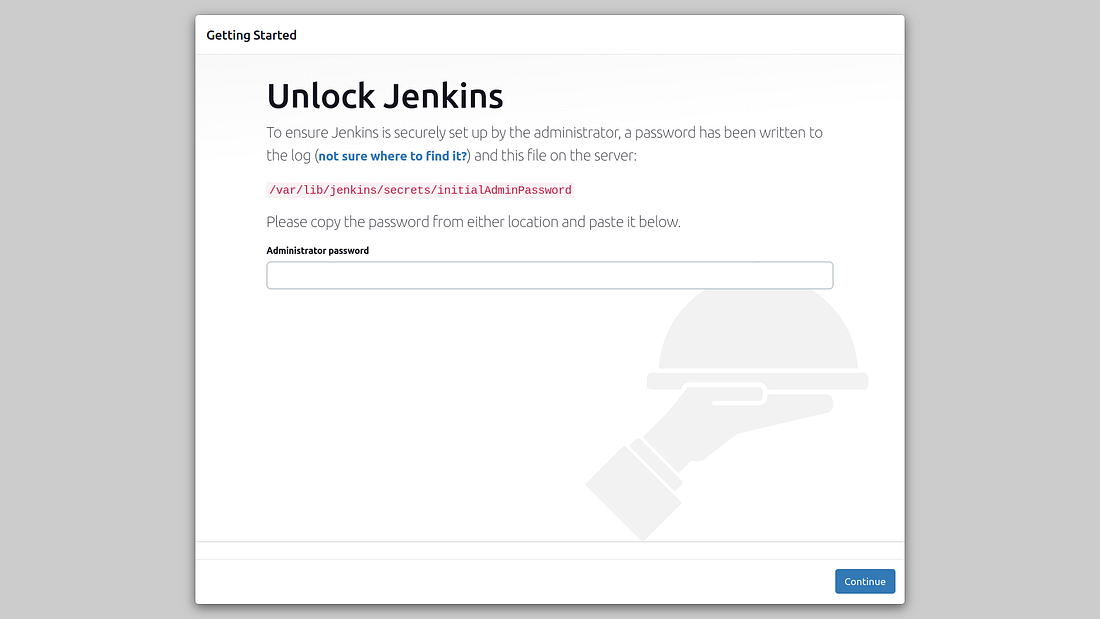
Your jenkins should be running on port number 8080 and you can access it by open  a browser an enter localhost:8080 or click here 

If you are on a server system use the ip address instead of localhost. <ipaddress>:8080


You can see a page like this which is requested for an Admin password. The password is stored in a location /var/lib/jenkins/secrets/initialAdminPassword and can be accessed by the below command:-

sudo cat  /var/lib/jenkins/secrets/initialAdminPassword

There you are...........


If Jenkins fails to start because a port is in use, you can change the port number in configuration file:

sudo vi /lib/systemd/system/jenkins.service

You need to edit the line Environment="JENKINS_PORT=8080" and add your port to replace it. eg:8081


What happened here is you edited a systemd unit file. So we need to reload the units.

systemctl daemon-reload

Restart jenkins daemon

sudo systemctl restart jenkins

Always check the jenkins daemon is running fine

sudo systemctl status jenkins

You can access the log of jenkins using the command:-

journalctl -xeu jenkins.service


Share:

Sunday, October 2, 2022

Heroku Introducing Students Package😍😍

 
We know a month ago Heroku announced that they are stopping all their free tiers. Now Heroku is introducing a developer program for students. They announced a new partnership with GitHub, which adds Heroku to their Student Developer Pack and gives students a credit of $13 USD per month for 12 months. This credit can be applied to any Heroku product offering, except for third-party Heroku Add-ons.
The Heroku for GitHub Students program will open for registration on Oct. 3, 2022 at 9:00 a.m. PT. After 12 months, accounts will be charged for active services or they must spin down their resources to avoid charges.


Share:

Wednesday, September 28, 2022

A trick to manage all your passwords


I have seen most of the people set same password for different websites. This character of people will make the job of hackers easy. So here is a tip to manage all your passwords without a password manager.

Let's see how to set a password:-

To create a password that you can guess and can't remember easily, is to make a pattern. A pattern that can be guessed only by you. 
By making a pattern you will have different password for different websites.

Suppose your name is John Doe and you are creating a password for your Facebook account:-

You can take your last name as the first word that makes Doe

Next we will add some numbers. Assuming John Does's birthday on 29th July, we take 29 and flip it. So we have 92.

Now our password is Doe92

We can set these part as static. It is common for your every password. After these characters everything will be different. You can chose that part also:-

for facebook you can select each odd characters from facebook. 
That means fcbo


Adding these characters to the password makes Doe92fcbo

You can add special characters in between each parts. 

Doe@92#fcbo

In a similar way your Instagram password would be Doe@92#isarm

Now we have a strong password to use. You can see that we can break this password as three parts.

LastName+DOB+sitename

In the last part we can choose any patterns like choosing only the letters from your name and many more...


Share:

Managing SSH keys!!!


It was all sudden. I managed to configure the ssh key and it shows you are not authorised to make any changes!!?? 

So what it is? Why this happens??

While trying to figure it out I understood that the ssh agent is confused with the identity file. You can see the permission is denied from the public key. The problem is caused after I added my Gitlab ssh key. Assuming the ssh-agent is confused with my Gitlab and Github ssh keys. When I try to push something, ssh checks for my identity file and  it doesn't know which file to pick!! So it might picked  Github ssh key for Gitlab server which caused the error.

Solution

The problem was identifying the identity file. So I made a config file in .ssh folder for a better understanding.

vi ~/.ssh/config

Host gitlab.com
	PreferredAuthentications publickey
	IdentityFile ~/.ssh/gitlab_key_location
Host github.com
	PreferredAuthentications publickey
	IdentityFile ~/.ssh/github_key_location


Now the ssh agent knows where to look for the private key for each hosts.


Share: